• This is default featured slide 1 title

    Go to Blogger edit html and find these sentences.Now replace these sentences with your own descriptions.This theme is Bloggerized by Lasantha Bandara - Premiumbloggertemplates.com.

  • This is default featured slide 2 title

    Go to Blogger edit html and find these sentences.Now replace these sentences with your own descriptions.This theme is Bloggerized by Lasantha Bandara - Premiumbloggertemplates.com.

  • This is default featured slide 3 title

    Go to Blogger edit html and find these sentences.Now replace these sentences with your own descriptions.This theme is Bloggerized by Lasantha Bandara - Premiumbloggertemplates.com.

  • This is default featured slide 4 title

    Go to Blogger edit html and find these sentences.Now replace these sentences with your own descriptions.This theme is Bloggerized by Lasantha Bandara - Premiumbloggertemplates.com.

  • This is default featured slide 5 title

    Go to Blogger edit html and find these sentences.Now replace these sentences with your own descriptions.This theme is Bloggerized by Lasantha Bandara - Premiumbloggertemplates.com.

Showing posts with label Ubuntu. Show all posts

How To Install qBittorrent On Ubuntu


qBittorrent, free and reliable P2P bittorrent client, reached the new major 4.0.0 release a few days ago with many new great features and numerous bug-fixes.

qBittorrent 4.0.0 features:

  • Change qbittorrent logo.
  • New icon theme with SVG source
  • Drop Qt4 support.
  • UI for managing locally banned IP list
  • Support for specifying where to save/load config files. Support for portable mode.
  • Possible to pass options via ENV variables
  • Implemented share limit by seeding time
  • Enable drag n drop to create torrent on mainwindow
  • Use the system icons for each file type in the Content tab
  • Add show/hide statusbar option
  • Linux: Allow custom tray icons when system icon theme is used
  • And so many other changes.
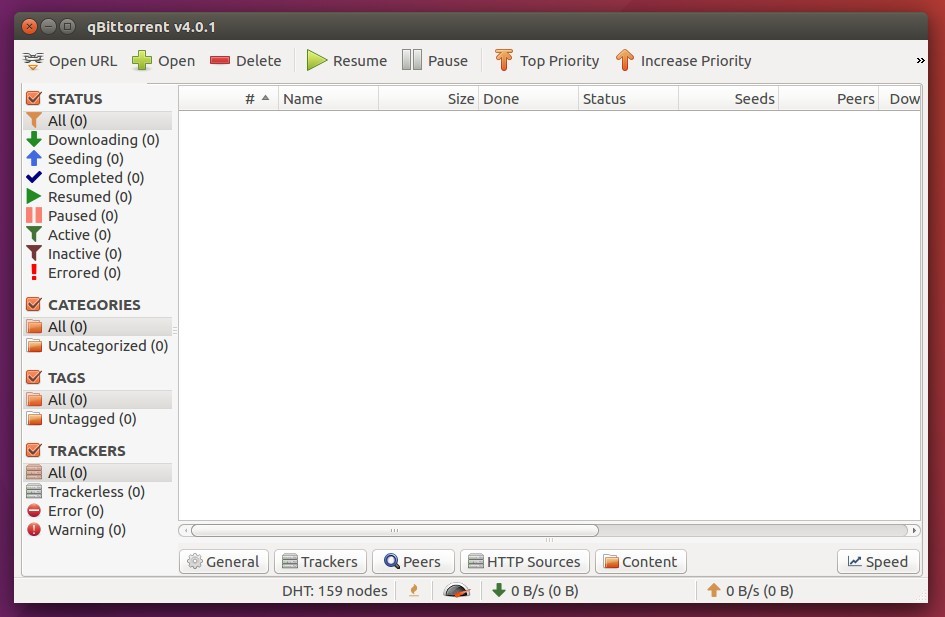
qbittorrent 4

How to Install qBittorrent 4.0 in Ubuntu:

The qBittorrent stable PPA contains the latest packages for Ubuntu 16.04, Ubuntu 17.04, Ubuntu 17.10, and Ubuntu 18.04.
Open terminal either via Ctrl+Alt+T or by searching for ‘terminal’ from app launcher. When it opens, do:
1. Run command to add the PPA repository:

sudo add-apt-repository ppa:qbittorrent-team/qbittorrent-stable

Type your password (no visual feedback while typing) when it prompts and hit Enter.
qbittorrent-ppa
2. Then upgrade qBittorrent via Software Updater if you have a previous release installed.
upgrade-qbittorrent
or run following commands one by one to check updates and install / upgrade the bittorrent client:

sudo apt-get update
sudo apt-get install qbittorrent

Uninstall:

You can easily remove the PPA repository via Software & Updates utility under Other Software tab.
To remove qBittorrent, either use your system package manager or run command:

sudo apt-get remove --autoremove qbittorrent
Share:

How To Install Grub Customizer on Ubuntu 17.10


How to install Grub Customizer on Ubuntu 17.10. Learn how to use Grub Customizer. Grub Customizer is a wonderful application that allows user to edit the menu entries from the GRUB booting screen. Grub Customizer has a graphical interface to configure the GRUB2/BURG settings and menu entries.


Grub Customizer Features:
  • move, remove or rename menuentries (they stey updatable by update-grub)
  • edit the contents of menuentries or create new ones (internally it edits the 40_custom)
  • support for GRUB2 and BURG
  • reinstallation of the bootloader to MBR
  • settings like default operating system, kernel params, background image and text colors etc.
  • changing the installed operating system by running on a live cd

Install Grub Customizer 5.0.5

Grub Customizer 5.0.5 is the latest version available of the Grub Customizer software. Grub Customizer 5.0.5 can be installed on Ubuntu Systems, via PPA. Run the following commands to install Grub Customizer 5.0.5 on Ubuntu:

sudo add-apt-repository ppa:danielrichter2007/grub-customizer
sudo apt-get update
sudo apt-get install grub-customizer


If you want to uninstall and remove the Grub Customizer from Ubuntu Systems, run the command given below:

sudo apt-get remove grub-customizer
Share:

Search This Blog

Powered by Blogger.

Blog Archive

Labels

Recent Posts

Unordered List

  • Lorem ipsum dolor sit amet, consectetuer adipiscing elit.
  • Aliquam tincidunt mauris eu risus.
  • Vestibulum auctor dapibus neque.

Pages

Theme Support

Need our help to upload or customize this blogger template? Contact me with details about the theme customization you need.